User Guide
Offline Chart Areas
If using your vessel in areas where there is no data coverage you can download charts and weather to use offline. These are called offline chart packs. Currently offline chart packs do not include tidal information but support for this is planned. The system allows you to choose a rectangular area which will then be used to download the chart information and the weather forecast.
The length of the forecast can be chosen to limit data use. To access Offline charts select them from the main menu. When your device has no data coverage it will appear as offline and any saved offline chart area will appear labeled offline with a dotted outline.
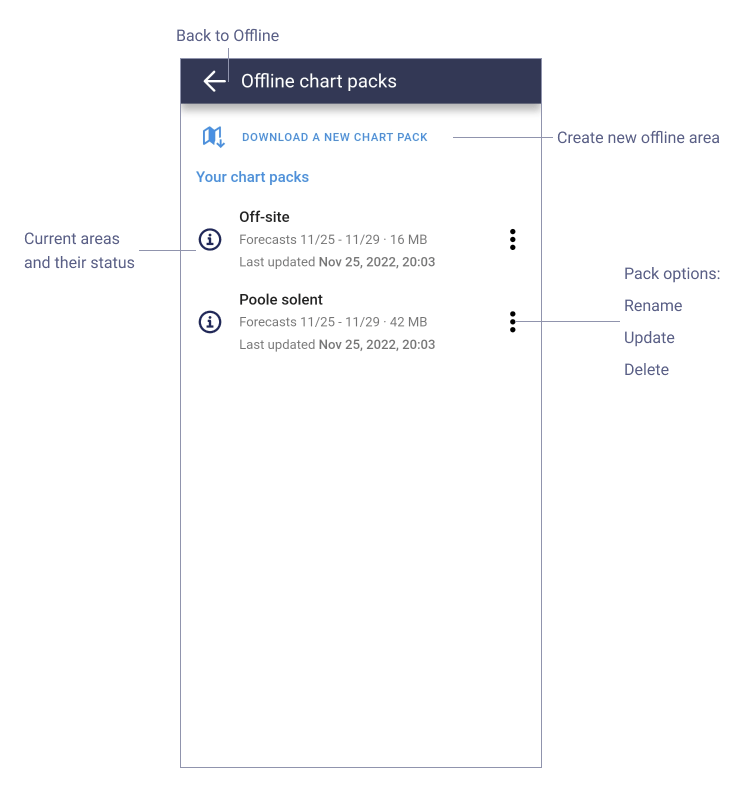
To create a new offline chart pack select the map download icon. Existing chart packs will appear as a list. These can be renamed, updated or deleted from the options menu. If the chart pack data is out of date then a warning message will appear. If you select an existing offline area in the list then you will see a summary of the area and its status. You can delete the pack. If you want to redefine the offline area then delete it and create a new pack.
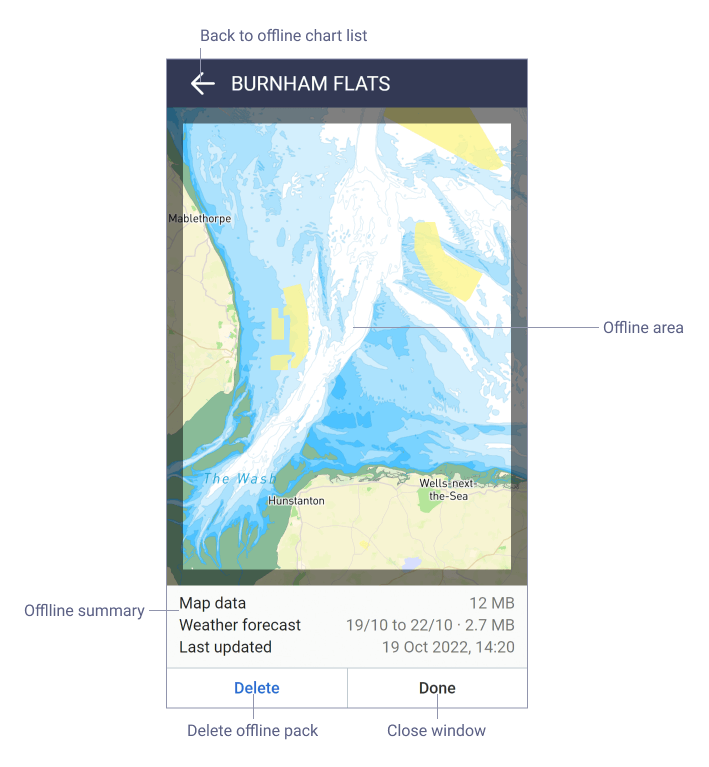
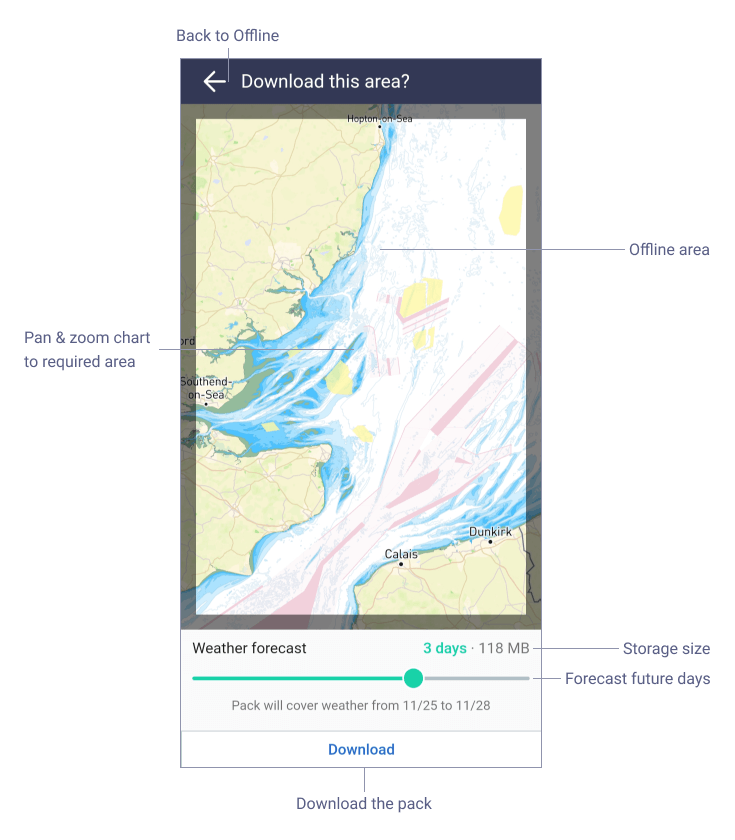
When you create a new pack a chart view will appear with the offline area viewport. The offline area is the area that will be saved. You can refine the area you want by zooming and panning the chart.
There are some things to consider when defining the offline area . The size of the area will have a direct influence on the amount of data stored and the ability to download the data. If the pack download fails try a smaller area as this will be more likely to succeed. It's much easier to download these offline packs on wifi before setting off.
The forecast slider allows you to select the forecast future days duration and the longer it is the more data is downloaded, the data storage required is shown. Forecast accuracy can diverge over time so long range forecasts are more changeable. The download button will create the offline chart pack and it will appear in your offline chart pack list.
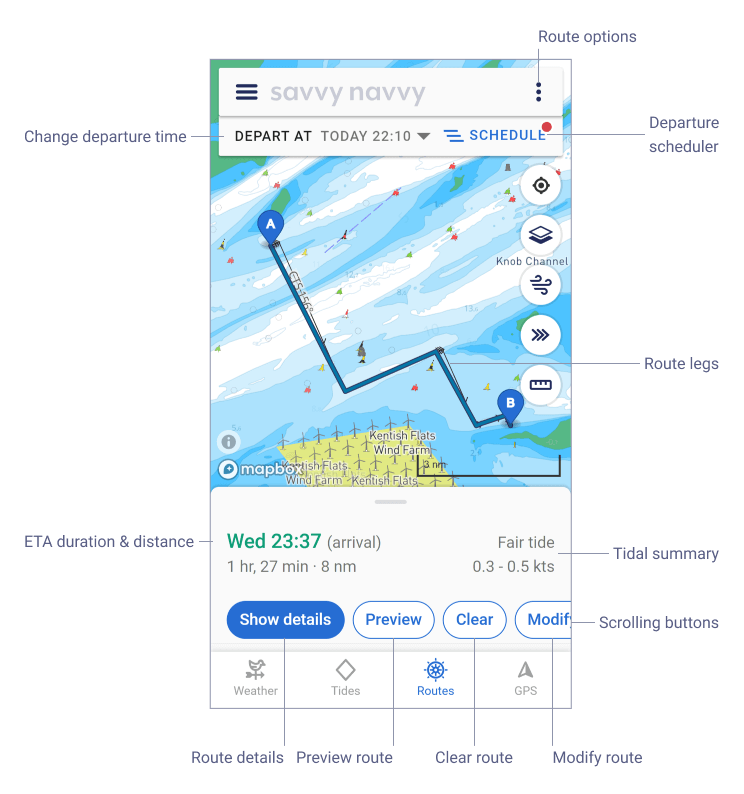
Note that when plotting a route or viewing a saved route the Route options top menu has an option to Save the route offline. This will create an offline pack to contain the route and is an easy way to make sure you have the charts and weather for your planned activity.